 Monitorture
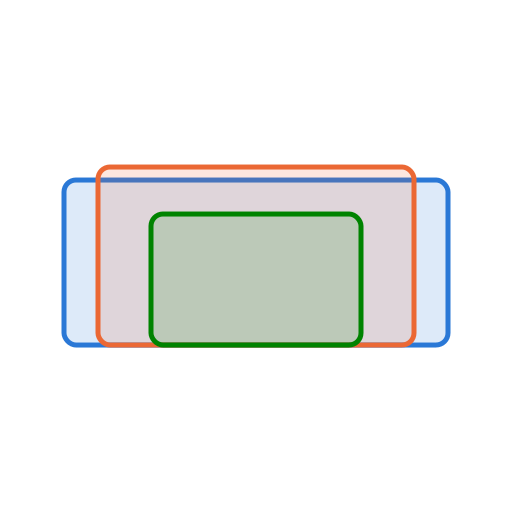
34″ monitor: UWFHD (UltraWide) vs WQHD (UltraWide)
A 34″ monitor is the same physical size — about 31.4″ wide by 13.1″ tall — whatever resolution you pick. What changes is pixel density: more pixels in that fixed area means smaller pixels, sharper text and finer detail. Here's how UWFHD (UltraWide) vs WQHD (UltraWide) compare on a 34″ screen.
| Resolution | Pixels | PPI | Pixel pitch | How it feels |
|---|---|---|---|---|
| UWFHD (UltraWide) | 2560 × 1080 | 82 | 0.311 mm | On the coarse side — pixels and soft text are visible |
| WQHD (UltraWide) | 3440 × 1440 | 110 | 0.232 mm | Comfortable — the common desktop sweet spot |
Which resolution should you get at 34″?
Because the diagonal is fixed, a higher resolution doesn't make the screen bigger — it makes each pixel smaller, so text and edges look crisper. The trade-off is that the interface also shrinks: past roughly ~150 PPI you'll usually want to turn on OS scaling to keep menus and text readable.
For a normal desk viewing distance, about ~95–120 PPI is the comfortable band where the UI reads well at 100% scaling. On a 34″ panel that means UWFHD (UltraWide) sits at ~82 PPI (on the coarse side — pixels and soft text are visible), while WQHD (UltraWide) reaches ~110 PPI (comfortable — the common desktop sweet spot) — same screen, noticeably different sharpness.
Viewing distance matters too: the farther you sit, the less a lower PPI shows, so a higher resolution pays off most when the screen is close.